

WooCommerce Order Notification Messages and Statuses
Use placeholders, per-status messages and custom order statuses to write WooCommerce order notifications your customers actually read.
This guide explains how to write the notifications your customers get when their WooCommerce order changes status. If you haven’t switched order updates on yet, start with Set up WooCommerce order notifications.
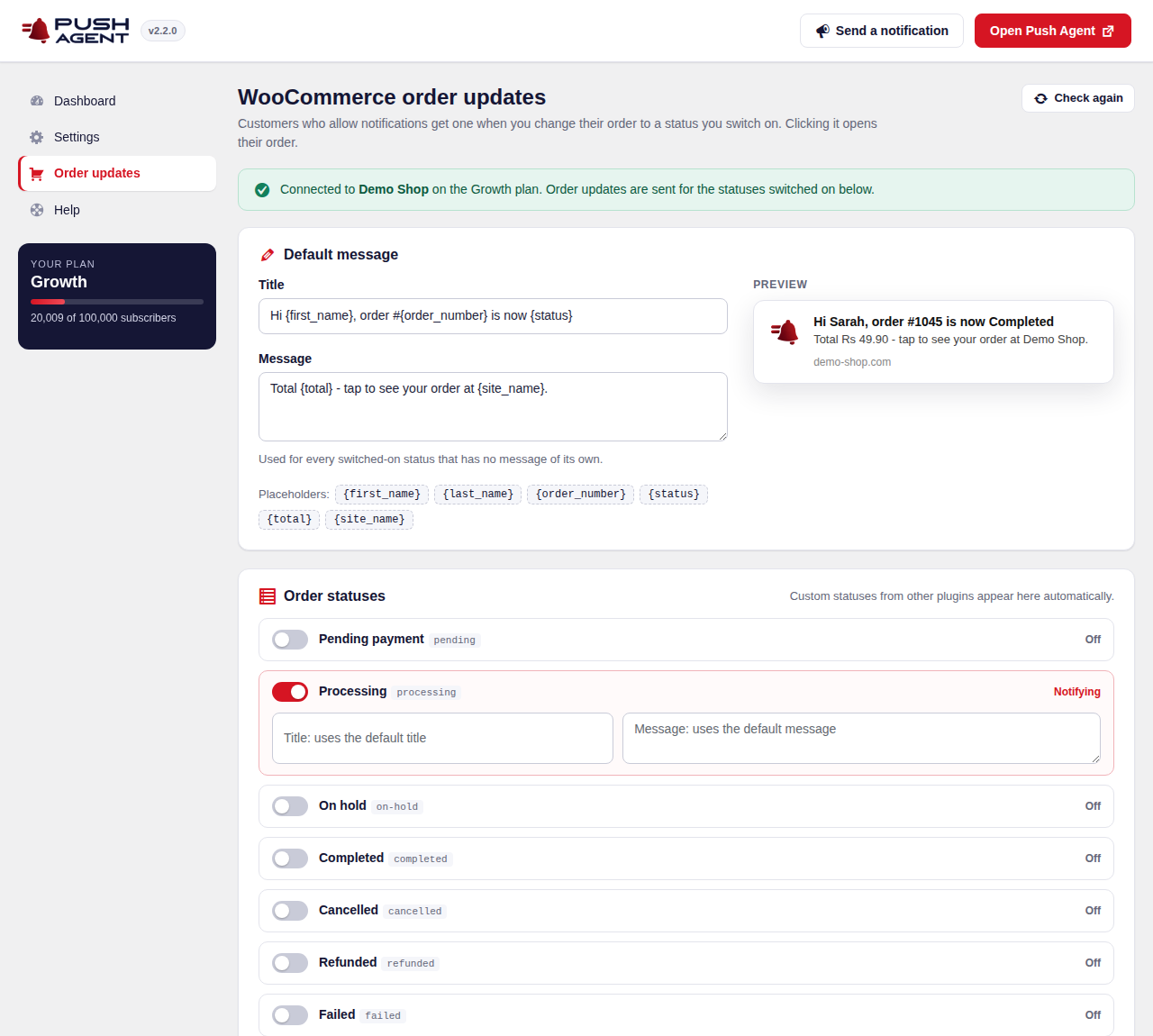
Default message and per-status messages
In Push Agent → Order updates you write one default title and message. Every switched-on status uses them unless you write a title or message for that status. Fill in a status’s own fields when it deserves its own words, for example a delivery note for “Completed”.
Placeholders
Placeholders are replaced with the order’s details when the notification is sent. Click a placeholder on the screen to insert it.
{first_name}and{last_name}: the customer’s first and last name from the order.{order_number}: the order number your customer sees.{status}: the new status, as WooCommerce names it.{total}: the order total with currency.{site_name}: your shop’s name.
Order statuses
All WooCommerce statuses are listed: Pending payment, Processing, On hold, Completed, Cancelled, Refunded and Failed. Custom statuses added by other plugins, such as “Packing” or “Handed to courier”, appear automatically. Switch on only the ones that are useful to your customers.
Examples
- Processing — Title: Thanks, {first_name}! We’ve got your order — Message: Order #{order_number} ({total}) is confirmed. We’ll let you know when it ships.
- Handed to courier (custom) — Title: Order #{order_number} is on its way — Message: Your parcel has left {site_name}. Tap to see your order.
- Completed — Title: Delivered, {first_name} — Message: We hope you love it. Tap to see your order or buy again.
Tips for messages customers read
- Keep titles short. Browsers cut long titles, especially on phones.
- Put the useful part first: what happened to the order.
- Every notification opens the customer’s order, so you don’t need a link in the text.
- Don’t switch on statuses customers don’t care about, such as internal steps.
Asking customers at checkout
With Show a “Get updates about this order” box after checkout switched on, the order confirmation page shows a small box with a Turn on updates button. When a customer clicks it and allows notifications, their browser is linked to the order. Logged-in customers are linked on any page of your shop.
Where to see what was sent
- On the order itself, as an order note.
- Under Recent order updates on the Push Agent dashboard in WordPress.
- In your Push Agent dashboard, on the API & WooCommerce page.