

Set Up RSS Auto-Push | Full Documentation
Send a push notification automatically every time you publish a new post.
RSS auto-push watches your website’s RSS or Atom feed. When a new post appears, Push Agent turns it into a notification and sends it to your subscribers. This guide shows how to find your feed, connect it and check that it works. For ideas on when and how to use it, read RSS to push notifications: auto-send every new blog post.
Before you start
- Your website is connected to Push Agent and collecting subscribers (see WordPress, Joomla or any website).
- Your website has a public RSS 2.0, RSS 1.0 or Atom feed.
- Your Push Agent account is on the Growth plan or higher (pricing).
How it works
- When you add a feed, Push Agent records the posts already in it. These are never sent.
- Push Agent checks the feed at the interval you choose. Each new post becomes a notification: the post title, the opening lines of the post (or your own text) and the post’s image.
- Clicking the notification opens the post.
- Every send appears in Campaigns with an “RSS” label, with deliveries, clicks and click-through rate.
Step 1: Find your feed address
WordPress: your feed is https://yoursite.com/feed/. For a single category, use https://yoursite.com/category/category-name/feed/.
Joomla: open your blog or category page on the website and add ?format=feed&type=rss to its address, for example https://yoursite.com/blog?format=feed&type=rss. This works for menu items of type Category Blog, Category List and Featured Articles.
If that returns your normal page or a 404 error, use the category directly:
- In Joomla’s administrator, go to Content → Categories and note the ID of the category your posts are in.
- Use this address, with your domain and ID:
https://yoursite.com/index.php?option=com_content&view=category&id=12&format=feed&type=rss
Other websites: view your homepage’s source and search for application/rss+xml or application/atom+xml. The address next to it is your feed.
Open the address in your browser to check it. You should see a page of XML code listing your latest posts, not your normal web page.
Step 2: Add the feed in Push Agent
- Sign in at app.pushagent.net and choose the website in the top-left switcher.
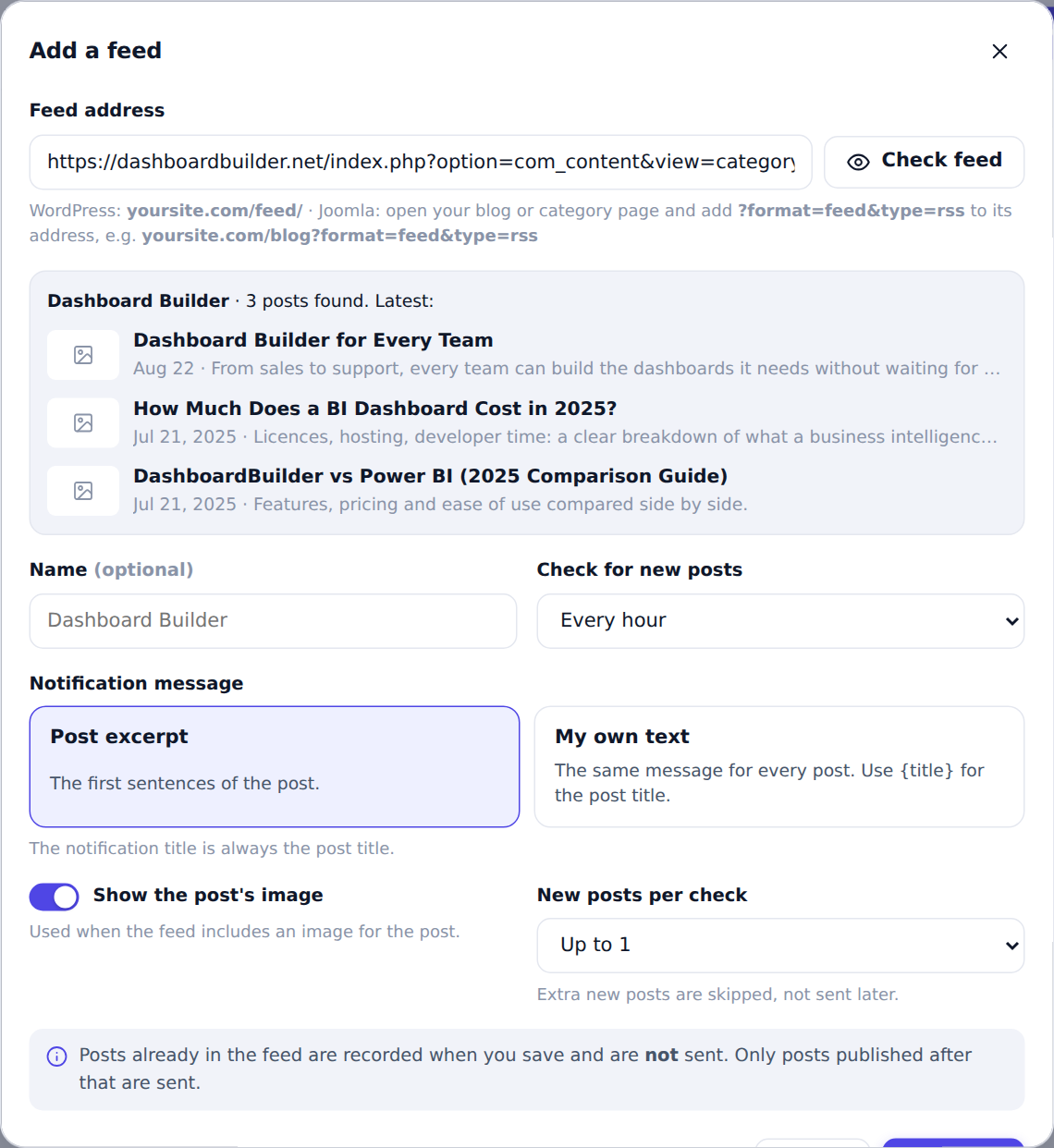
- Open RSS auto-push in the sidebar and click Add a feed.
- Paste the feed address and click Check feed. Push Agent shows the feed’s name, how many posts it found and the latest ones.
https://pushagent.net/wp-content/uploads/pushagent-docs/screenshot-1.png
Step 3: Choose the settings
| Setting | What it does |
|---|---|
| Name | Optional. Taken from the feed if you leave it empty. |
| Check for new posts | Every 15 or 30 minutes, every hour, every 3, 6 or 12 hours, or once a day. |
| Notification message | Post excerpt uses the first sentences of the post. My own text uses the same message for every post; write {title} to include the post title. The notification title is always the post title. |
| Show the post’s image | Adds the post’s image to the notification when the feed includes one (https images only). |
| New posts per check | Up to 1, 2 or 3. If more new posts appear in one check, the newest are sent and the rest are skipped, not sent later. |
Click Add feed. Push Agent checks the feed straight away and records the posts already in it. You’ll see a message like “Feed added. 6 existing posts recorded; new posts will be sent from now on.”
Step 4: Check it works
- Publish a new post on your website.
- In RSS auto-push, click Check now on the feed (or wait for the next scheduled check).
- The notification is sent to your subscribers, and the post appears under Recent posts as Sent.

Managing your feeds
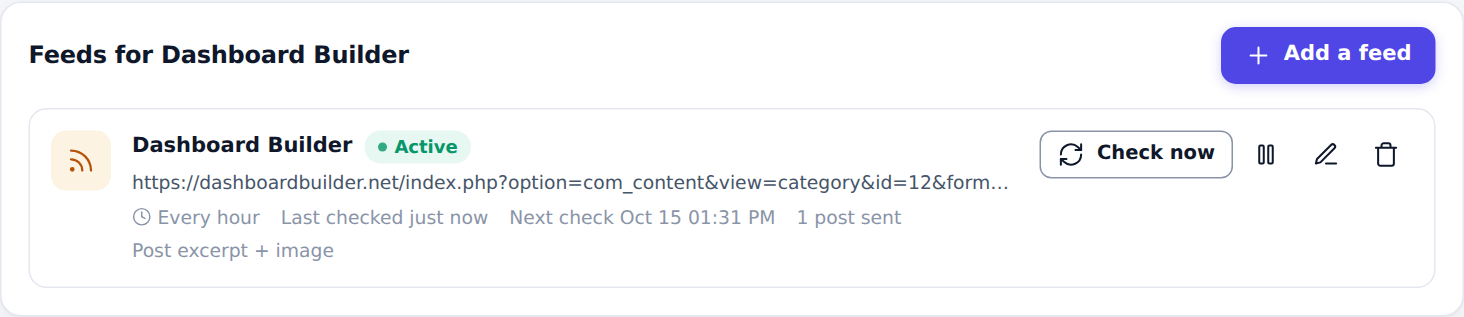
- Check now checks the feed immediately.
- Pause stops sending until you resume it, for example while you republish old content.
- Edit changes the settings. If you change the feed address, its existing posts are recorded again, so nothing old is sent.
- Remove stops the feed. Notifications already sent stay in Campaigns.
- Each website can have up to 5 feeds, for example one per category.
Results in Recent posts:
| Result | Meaning |
|---|---|
| Sent | The post was sent. Delivered and Clicks show the results. |
| Skipped | More new posts than your “New posts per check” setting appeared in one check; this one wasn’t sent. |
| Not sent | The post couldn’t be sent. The reason is shown underneath, for example the plan doesn’t include RSS auto-push or no subscribers match. |
Troubleshooting
“This address is not an RSS or Atom feed”
The address opens a normal web page. Open it in your browser: if you see your site instead of XML code, check the address (Step 1). If the address is right, your site’s cache is serving the web page instead of the feed. Clear the cache (Joomla: System → Clear Cache) and exclude addresses containing format=feed or /feed/ from your caching plugin or Cloudflare rules.
“The feed address answered with HTTP 404”
The page in the address doesn’t exist. On Joomla, use the category address from Step 1 instead of a menu page.
A new post wasn’t sent
- Look for it under Recent posts. If it says Skipped, several posts were published between two checks; raise New posts per check if you want more of them sent.
- If the feed card shows Paused or Problem, resume it or fix the error shown on the card.
- If the post doesn’t appear in your feed yet, your site or cache hasn’t updated the feed. Open the feed address to check.
The notification has no image
Push Agent uses the post’s image from the feed, and it must be on an https address. Joomla includes the intro image automatically. WordPress doesn’t include the featured image in its feed by default: set Settings → Reading → For each post in a feed, include to Full text, or use a plugin that adds the featured image to the feed.
“That feed address points to a private network”
Push Agent only reads feeds on public websites. Feeds on local or test servers (such as localhost) can’t be used.
The RSS page says your plan doesn’t include it
RSS auto-push is part of the Growth plan and higher. Upgrade under Account → Change plan.
Need a hand?
If your feed still won’t connect, contact support with your feed address and we’ll take a look.