

WooCommerce Order Notifications: Send Status Updates by Browser Push
In this article

After someone buys from your shop, they want to know one thing: where is my order? WooCommerce sends emails, but emails get buried, filtered or read hours later. A browser notification appears on screen the moment the order moves, and one click opens the order.
This guide explains how WooCommerce order notifications by browser push work, which statuses are worth a notification, what to write, and how to set it up with Push Agent in about ten minutes.
What are WooCommerce order notifications?
They are web push notifications sent to a customer when their order changes status in WooCommerce, for example from “Processing” to “Completed”, or to a custom status such as “Handed to courier”. The customer allows notifications once, and from then on gets a short update at each step you choose.
They don’t replace WooCommerce’s emails. Emails are still the right place for receipts and full details; the notification is the quick tap on the shoulder that says something happened.
Why send order updates by push?
- They are seen straight away. The notification appears on the customer’s screen, not in a crowded inbox.
- Fewer “where is my order?” messages. Customers who are kept up to date have less reason to contact you.
- No extra data needed. Customers don’t give you a phone number, and there are no SMS costs.
- A reason to come back. The customer who allowed notifications for their order is also a subscriber for your future news and offers.
How Push Agent order updates work
- The customer allows notifications. After checkout, the order confirmation page shows a small “Get updates about this order” box. Logged-in customers can also allow notifications anywhere on your shop.
- Their browser is linked to the order. Push Agent matches the customer using a one-way code made from their email address and your API key. The email address itself is never sent to Push Agent.
- You change the order status as usual in WooCommerce → Orders.
- The plugin sends your message for that status. Clicking the notification opens the customer’s order.
- Everything is recorded. Each send is added as an order note, listed on the plugin dashboard and shown in your Push Agent dashboard.
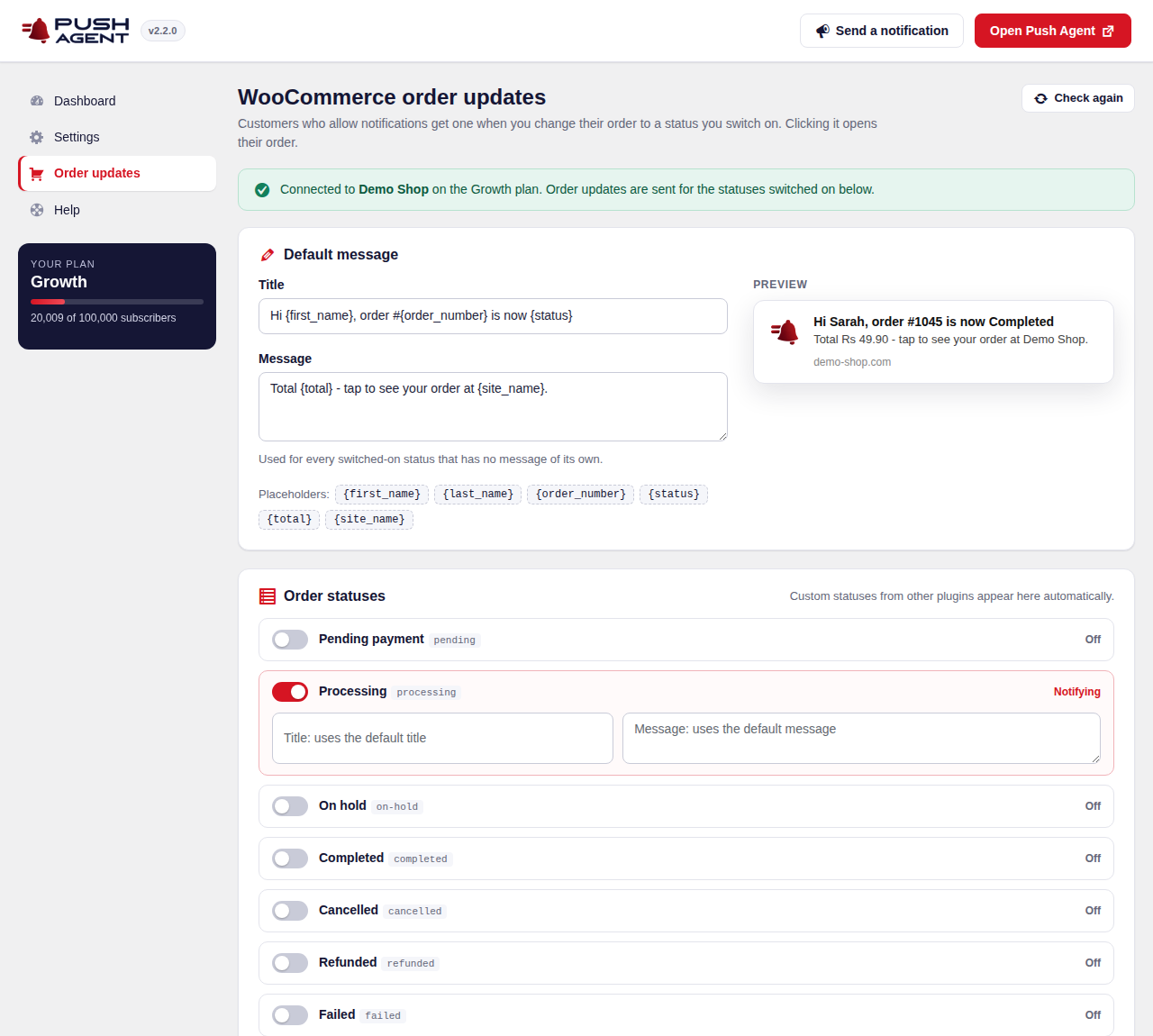
Which order statuses should send a notification?
Only send updates customers care about. A good starting point:
| Status | Send a notification? | Why |
|---|---|---|
| Processing | Yes | Confirms the order went through and payment was received. |
| Custom shipping statuses (for example “Handed to courier”) | Yes | The update customers wait for most. |
| Completed | Yes | Confirms delivery or completion, and is a natural moment to say thanks. |
| On hold | Sometimes | Useful if the customer needs to act, for example on a bank transfer. |
| Cancelled, Refunded, Failed | Sometimes | Helpful when it explains what happens next. Write these carefully. |
| Pending payment | Usually not | Often an internal step the customer doesn’t need to hear about. |
Custom statuses added by other plugins appear in the list automatically, so you can notify customers about steps like “Packing” or “Out for delivery”.
What to write: message examples
You write every message yourself, in your shop’s voice. Placeholders fill in the order’s details: {first_name}, {last_name}, {order_number}, {status}, {total} and {site_name}.
| Status | Title | Message |
|---|---|---|
| Processing | Thanks, {first_name}! We’ve got your order | Order #{order_number} ({total}) is confirmed. We’ll let you know when it ships. |
| Handed to courier | Order #{order_number} is on its way | Your parcel has left {site_name}. Tap to see your order. |
| Completed | Delivered, {first_name} | We hope you love it. Tap to see your order or buy again. |
A few rules that make order notifications work:
- Keep titles short. Browsers cut long titles, especially on phones.
- Put what happened first: “Order #1045 is on its way” beats “Great news from our team!”.
- You don’t need a link in the text: every notification opens the customer’s order.
- Write the same way you would talk to a customer at your counter.
More examples and tips are in WooCommerce order notification messages and statuses.
How to set up WooCommerce order notifications
You need WooCommerce 3.0 or newer (High-Performance Order Storage is supported), the Push Agent plugin connected to your account, and the Growth plan or higher. New accounts get all Growth features free for 14 days.
- In your Push Agent dashboard, open API & WooCommerce and create an API key. Copy it straight away, as it is shown only once.
- In WordPress, open Push Agent → Settings, paste the API key and click Save settings.
- Open Push Agent → Order updates, write your default title and message, and switch on the statuses you want.
- Keep the “Get updates about this order” box switched on, then place a test order and change its status.
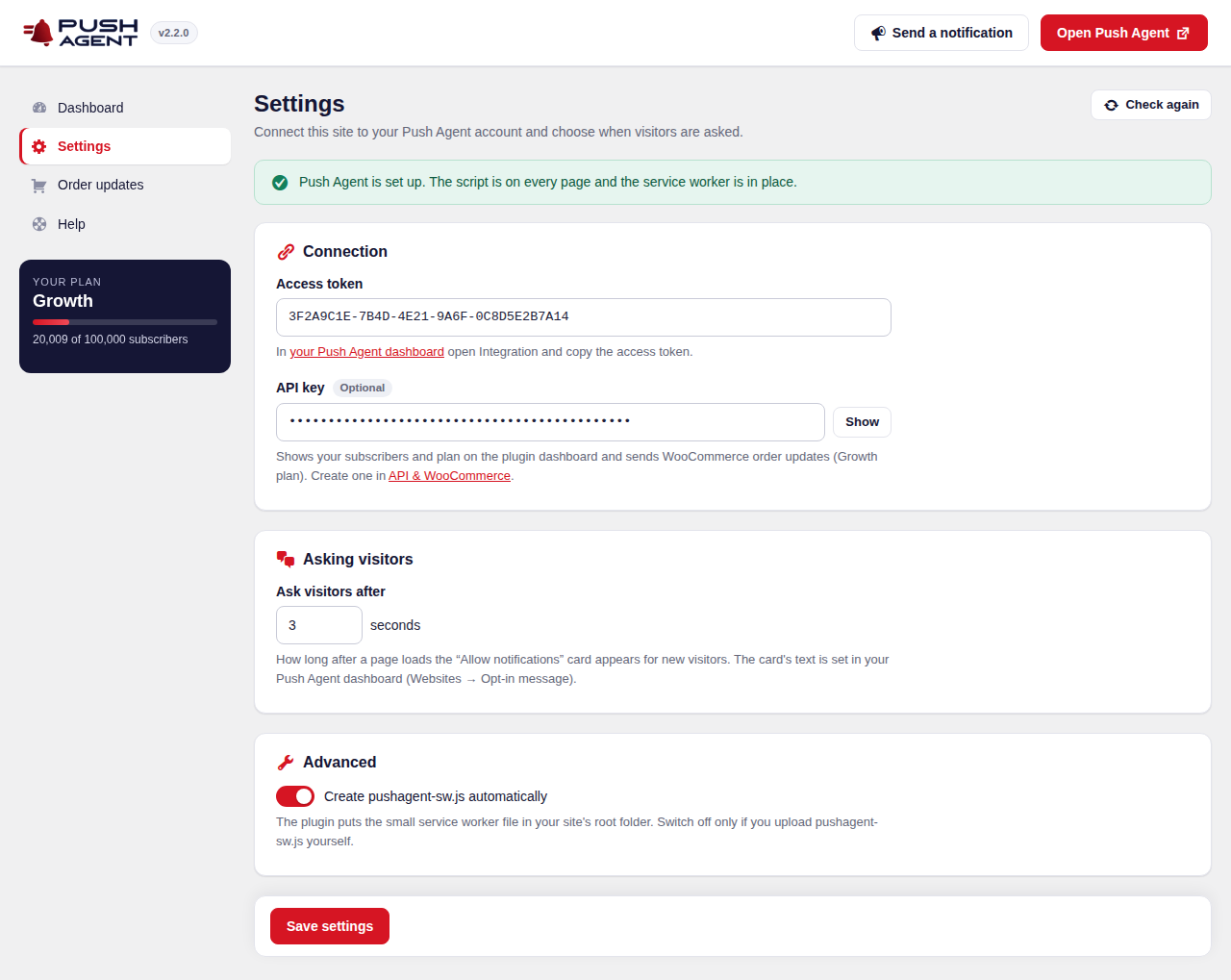
The full step-by-step guide, with troubleshooting, is in Set up WooCommerce order notifications. If the plugin isn’t installed yet, start with How to install Push Agent on WordPress.
Checking what was sent
Every status change leaves a trail. The order note tells you whether the customer was notified or, for example, “Not subscribed”. The Push Agent dashboard in WordPress lists recent order updates with their result, so you can spot problems quickly.
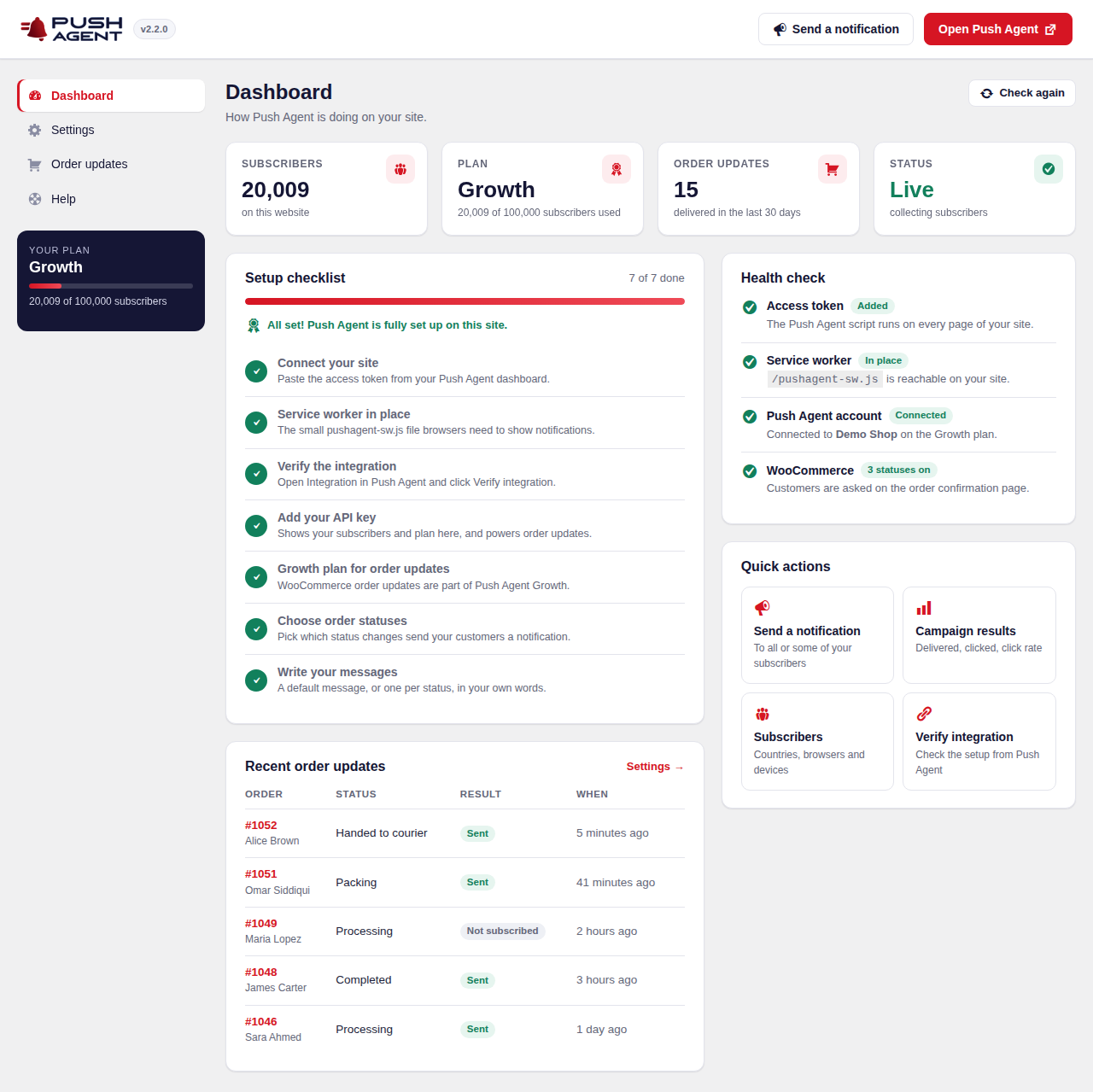
Good to know
- Customers only get updates in browsers where they allowed notifications. Someone who orders on their phone and allows notifications there gets the updates on that phone.
- On iPhone, web push only works for websites added to the Home Screen, so most iPhone shoppers will rely on your emails.
- Order updates go only to people who are already subscribers, so they don’t add to your subscriber count.
New to web push? Read what web push notifications are and how they work.
Frequently asked questions
Do customers need an account to get WooCommerce order notifications?
No. Guests can click “Get updates about this order” on the order confirmation page. Logged-in customers can also allow notifications on any page of your shop.
Do push order notifications replace WooCommerce emails?
No. WooCommerce keeps sending its emails. The browser notification is a quick extra alert that opens the order.
Does it work with custom order statuses?
Yes. Custom statuses added by other plugins appear in Push Agent → Order updates automatically, and you can switch each one on or off.
Is the customer’s email address sent to Push Agent?
No. Customers are matched with a one-way code made from their email address and your API key. The email address itself never leaves your shop.
Which Push Agent plan includes WooCommerce order updates?
Growth and Business. Every new account can try Growth free for 14 days.