

Push Notifications for Joomla: Free Plugin and Setup Guide
In this article
- What are push notifications for Joomla?
- Why add push notifications to a Joomla site?
- What you need before you start
- How to install push notifications on Joomla
- Test it in a minute
- Send a notification for every new Joomla article
- Tips for Joomla sites
- Common problems
- Frequently asked questions
- Add push notifications to your Joomla site today
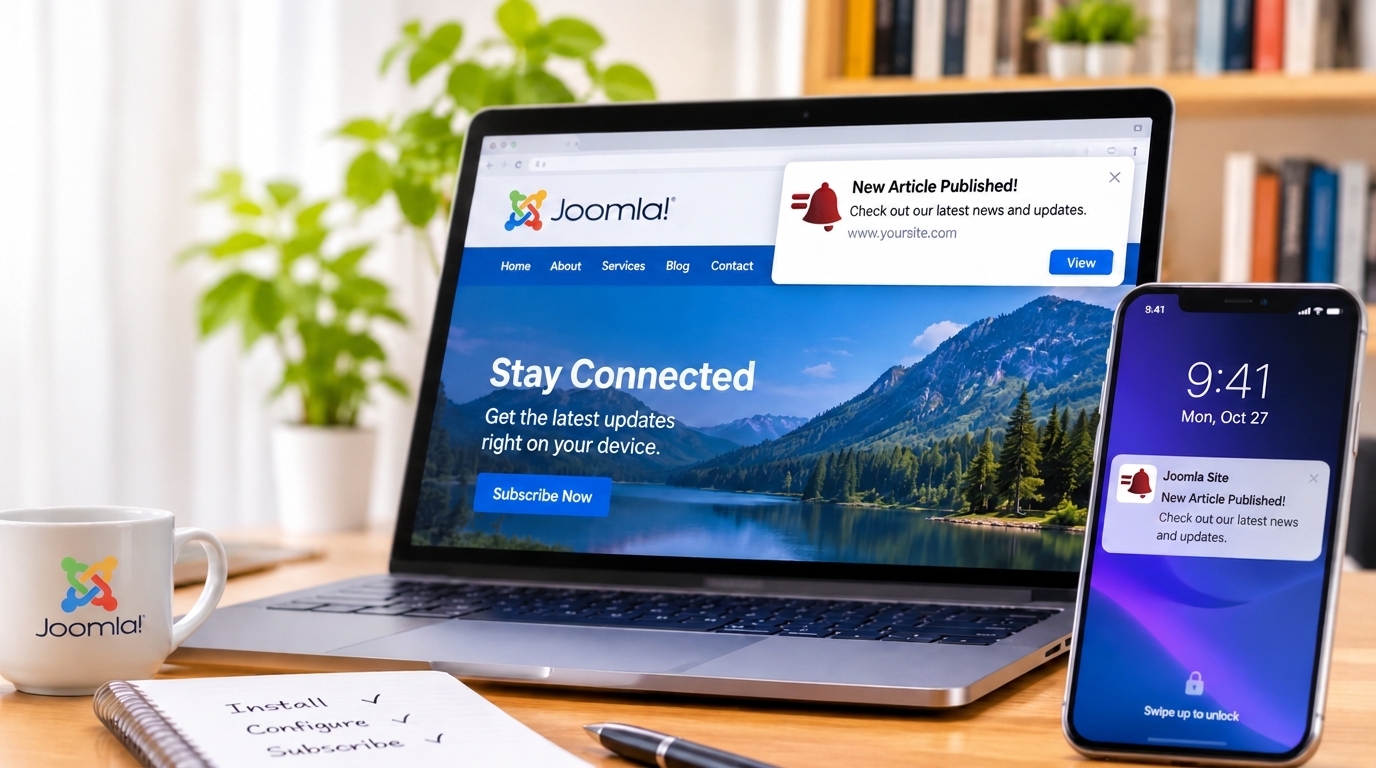
You publish a new article on your Joomla site and then wait. Visitors only find out if they come back by themselves, check your newsletter, or happen to see a social post. Most never do.
Web push notifications fix that. A visitor taps Allow once, and from then on you can reach them on their phone or computer, even when your site isn’t open. This guide shows how to add free push notifications to Joomla with the Push Agent plugin: what you need, the six setup steps, how to test it, and how to fix the most common problems.
What are push notifications for Joomla?
They’re the small messages that pop up on a visitor’s screen from your website, the same ones you see from news sites and shops. They need no mobile app and no email address. Joomla itself doesn’t include them, so you add them with a plugin that shows the permission card to visitors and sends the notifications for you.
If you’re new to the idea, start with what web push notifications are and come back.
Why add push notifications to a Joomla site?
- Readers hear about new content right away. A notification reaches them on Chrome, Edge, Firefox, Opera and Safari, on desktop and mobile.
- It works without an app. One setup on your website covers Android, iPhone (with a Home Screen step) and computers. See web push on mobile for the details.
- No Firebase project to manage. Push Agent uses the standard Web Push protocol (VAPID), so there are no Google accounts or keys to set up.
- It’s free to start. The Free plan covers one website and up to 2,500 subscribers, with unlimited notifications and no credit card.
What you need before you start
- Joomla 3.8 or newer. Joomla 4, 5 and 6 are supported.
- An HTTPS website. Browsers only allow push notifications on secure sites.
- A free Push Agent account. Sign up at app.pushagent.net with Google or an email address.
How to install push notifications on Joomla
The Push Agent plugin is a Joomla system plugin. Setup takes about five minutes.
Step 1: Create your account and add your website
Sign in to Push Agent, open Websites and click Add website. Enter your business name, your site address (with https://), your business type and your language. You can also upload a square icon, at least 192 × 192 pixels, which appears on every notification.
Step 2: Copy your access token
Open Integration and copy the access token shown on the right. It identifies your website. It isn’t a password.
Step 3: Download the plugin
Get the Joomla zip from the Push Agent plugin for Joomla download page, or from the Download Joomla plugin button on the Integration page. Don’t unzip it.
Step 4: Upload it as a package
| Your Joomla version | Where to install |
|---|---|
| Joomla 4, 5 and 6 | System → Install → Extensions, then the Upload Package File tab |
| Joomla 3 | Extensions → Manage → Install, then Upload Package File and Upload & Install |
Step 5: Add your token and choose your settings
Go to System → Manage → Plugins (Joomla 3: Extensions → Plugins), search for “Push Agent” and open System – Push Agent.
- Access token: paste the token you copied.
- Ask visitors after (seconds): how long after the page loads the opt-in card appears. The Free plan always shows it after 3 seconds. Choosing your own timing needs the Starter plan or higher.
- Advanced tab: leave Push Agent address as
https://app.pushagent.net/and set Create pushagent-sw.js automatically to Yes.
Step 6: Enable it and save
Set Status to Enabled and click Save & Close. If you see “Push Agent is set up,” the service worker file is in place and you’re done.
If the plugin can’t create pushagent-sw.js because the folder isn’t writable, download the file from the Integration page and upload it to your site’s root folder, the one that contains configuration.php. Then click Verify integration on the Integration page.
The full walkthrough, with every screen, is in our guide: How to install Push Agent on Joomla.
Test it in a minute
- Open your site in a private browser window and wait a few seconds.
- The Allow notifications card appears. Click Allow.
- In your Push Agent dashboard, send a test notification. It arrives on your screen within seconds.
Send a notification for every new Joomla article
You can write each notification by hand, or let Push Agent do it. RSS auto-push reads your Joomla feed and sends every new article as a notification, with no extra work after you publish.
Joomla builds a feed for any Category Blog, Category List or Featured Articles page. Add ?format=feed&type=rss to the end of that page’s address. If your blog uses a custom layout, point at the category directly, for example https://yoursite.com/index.php?option=com_content&view=category&id=12&format=feed&type=rss. Joomla also includes each article’s intro image in the feed, so notifications get a picture automatically.
RSS auto-push is part of the Growth plan and higher. We use it on our own Joomla site, Dashboard Builder, and explain the whole setup in RSS to push notifications.
Tips for Joomla sites
Clear the cache after saving
After you save the plugin, clear Joomla’s cache under System → Clear Cache, and clear your CDN cache too (Cloudflare, for example). Otherwise visitors can keep seeing the old page without the opt-in card.
Always test in a private window
A browser remembers if you already allowed or blocked notifications for your site, so the card won’t show again in a normal window. A private window starts fresh every time.
Update by installing over the old version
To update, install the new zip over the old one. Your settings are kept, and existing subscribers carry over when they next visit.
Write notifications for small screens
Put the point first and keep titles short, because a phone shows only a line or two. Once you have a few subscribers, A/B test your titles to see what gets tapped.
Common problems
- The opt-in card doesn’t appear: check that the plugin is Enabled and the token is saved, test in a private window on an
https://address, and clear Joomla’s and your CDN’s cache. If you previously allowed or blocked notifications, reset the permission from the padlock icon in the address bar. - You don’t see “Push Agent is set up”: the plugin probably couldn’t write
pushagent-sw.js. Download the file from the Integration page, upload it to the folder withconfiguration.php, then click Verify integration. - You can’t find the plugin after installing: go to System → Manage → Plugins and search for “Push Agent”. Its full name is System – Push Agent.
More fixes are in the Joomla installation guide.
Frequently asked questions
Does Push Agent work with Joomla 4, 5 and 6?
Yes. The plugin works with Joomla 3.8 and newer, including Joomla 4, 5 and 6.
Is the Joomla push notification plugin free?
Yes. The plugin is free to download, and the Free plan covers one website and up to 2,500 subscribers with unlimited notifications. No credit card is needed. Paid plans add targeting, scheduling and more subscribers.
Do I need Firebase or a Google account to use it?
No. Push Agent uses the standard Web Push protocol (VAPID), so there is no Firebase project to create or maintain.
Will it work on iPhone and Android?
Yes. On Android, visitors subscribe from the browser. On iPhone and iPad, visitors first add your site to the Home Screen, then subscribe from there. iOS and iPadOS 16.4 or later is required.
Why doesn’t the opt-in card show on my Joomla site?
Check that the plugin is enabled and the access token is saved. Test in a private window on an https address, clear Joomla’s cache and your CDN cache, and reset the notification permission from the padlock icon if you allowed or blocked it before.
Can I send a notification automatically when I publish a Joomla article?
Yes. RSS auto-push reads your Joomla category feed and sends each new article as a notification. It is included in the Growth plan and higher.
Will I lose my settings or subscribers when I update the plugin?
No. Install the new zip over the old one. Your settings are kept, and existing subscribers carry over when they next visit.
Add push notifications to your Joomla site today
Your visitors already like your content. Push notifications bring them back for the next article. Create your free Push Agent account, download the Joomla plugin and follow the installation guide. Compare plans on the pricing page when you’re ready to grow.