

Web Push Notifications on Mobile: Android & iPhone Guide
In this article
- Can a website send notifications to a phone?
- How web push works on a phone
- Web push notifications on Android
- Web push notifications on iPhone and iPad
- What your site needs for mobile web push
- Writing notifications for small screens
- How subscribers turn notifications off on a phone
- Send mobile web push with Push Agent
- Frequently asked questions
- Reach your visitors on every phone
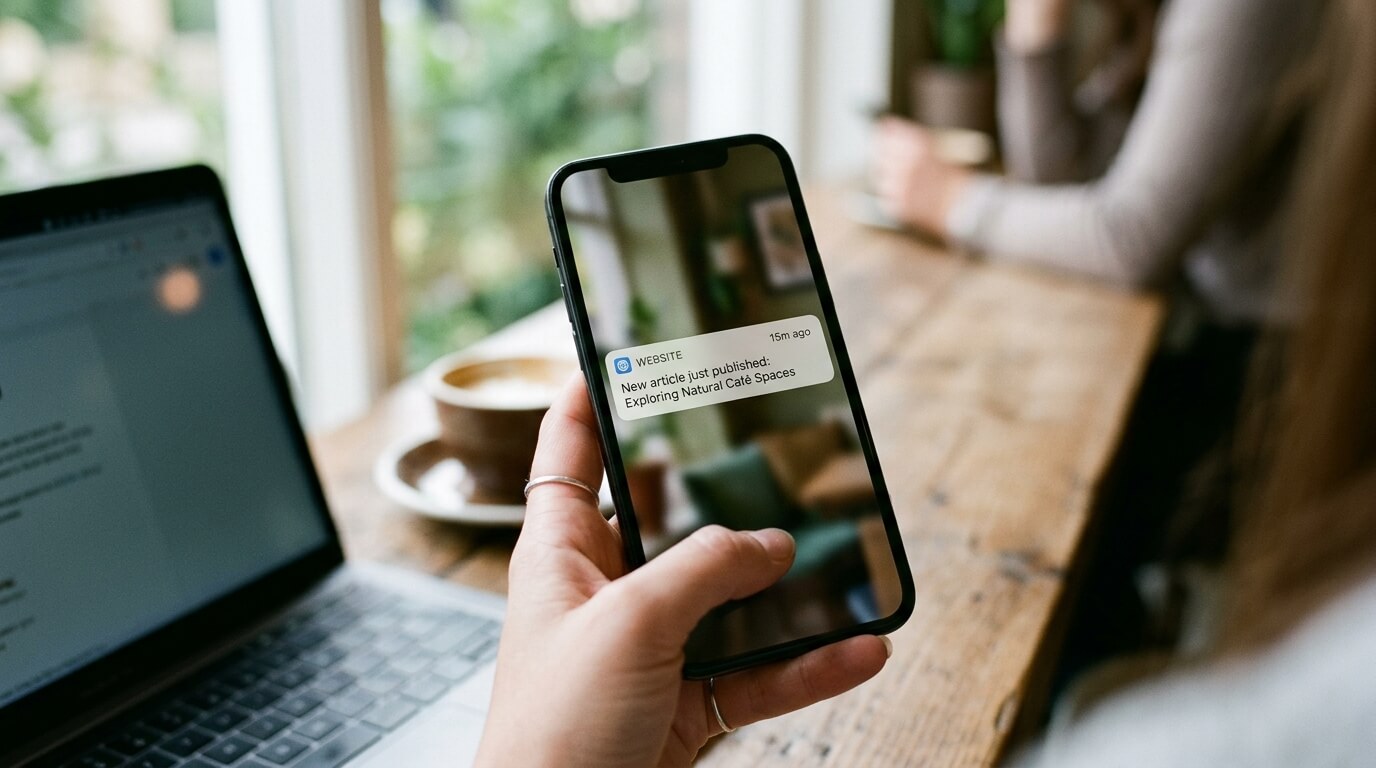
Most of your visitors are on a phone, so the first question about web push is usually the same one: will it reach them there? Yes. A website can send notifications to a phone without an app. On Android it works straight from the browser. On iPhone and iPad it works too, with one extra step from the visitor.
This guide explains what your subscribers see on each platform, what your site needs, and how to write notifications that read well on a lock screen.
Can a website send notifications to a phone?
Yes, on both Android and iPhone. Here’s how the two compare at a glance:
| Question | Android | iPhone and iPad |
|---|---|---|
| Works without an app | Yes | Yes |
| Where the visitor subscribes | In the browser tab | In the site’s Home Screen web app |
| Browsers | Chrome, Firefox, Edge, Opera, Samsung Internet | Safari, Chrome, Edge, Firefox (all via the Home Screen) |
| Minimum version | Any current Android browser | iOS / iPadOS 16.4 |
| Extra step for the visitor | None | Add the site to the Home Screen first |
| Arrives when the browser is closed | Yes | Yes |
How web push works on a phone
Web push on a phone works the same way as on a laptop. The only difference is where the notification appears: on the lock screen and in the notification shade, next to messages from installed apps.
- A visitor taps Allow on your site’s notification prompt.
- The browser creates a subscription for that phone, and your push service stores it.
- When you send a notification, your push service hands it to the browser’s own push network (Google’s for Chrome, Mozilla’s for Firefox, Apple’s for Safari).
- That network delivers it to the phone, and a small script on your site, the service worker, shows it.
- The subscriber taps it and lands on the page you linked.
The visitor never gives you an email address or phone number. They can’t be texted, and they can unsubscribe at any time from their phone’s settings. For the full picture, see our guide to what web push notifications are.
Web push notifications on Android
Android is the easy case: visitors subscribe straight from the browser tab, with nothing to install. Chrome, Firefox, Edge, Opera and Samsung Internet all support it.
What the visitor sees
- They open your site in their usual browser.
- Your opt-in card asks whether they’d like updates. They tap Allow.
- The browser shows its own permission prompt. They tap Allow again.
- From then on, your notifications arrive on the lock screen and in the notification shade, with your site’s name and icon.
Notifications arrive even when the browser is closed, because Android wakes the browser in the background to show them. Aggressive battery-saving settings on some phones can delay them.
Android 13 and later
The browser itself needs notification permission from Android. Most people granted it when they first opened Chrome. If someone turned it off, no website can notify them until they switch it back on in Settings → Apps → Chrome → Notifications.
Web push notifications on iPhone and iPad
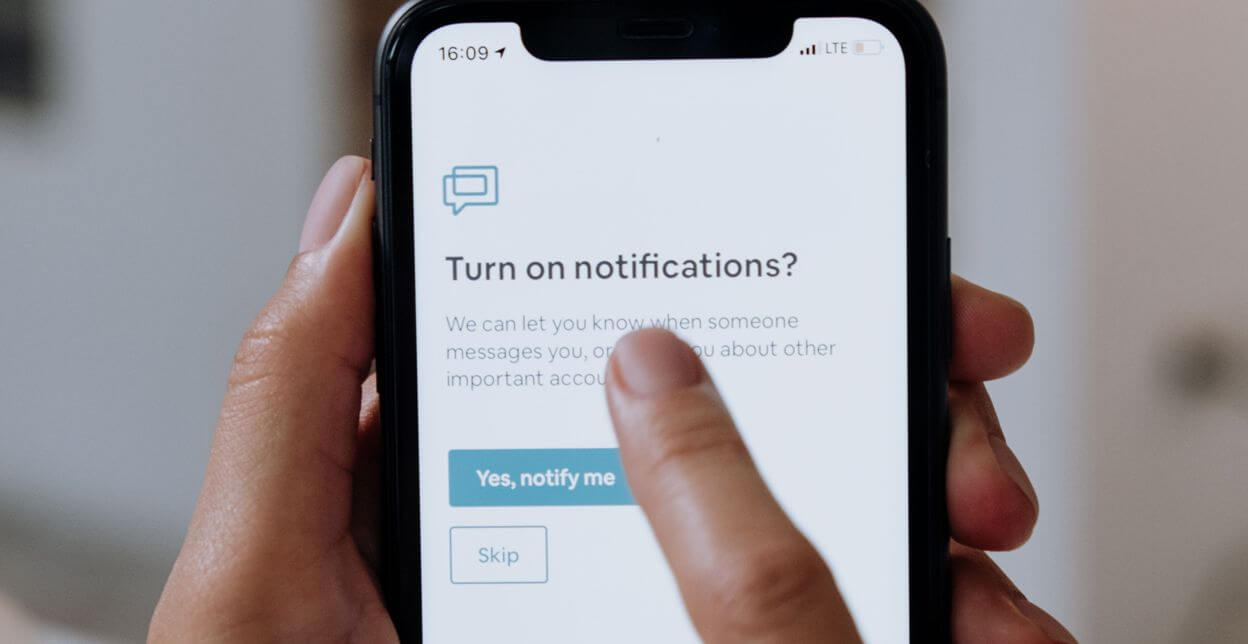
iPhones and iPads have supported web push since iOS and iPadOS 16.4 (March 2023), but only for sites the visitor has added to the Home Screen. A normal Safari tab can’t ask for notification permission.
What the visitor does
- They open your site in Safari (or Chrome, Edge or Firefox on iOS).
- They tap Share → Add to Home Screen, then Add.
- They open your site from the new Home Screen icon.
- They tap your opt-in button, then Allow on the iOS prompt.
After that, notifications look and behave like any app’s. They appear on the lock screen and in Notification Centre, and they respect Focus modes.
Things to know about iOS
- The prompt needs a tap. iOS only shows the permission prompt when the visitor taps a button. A prompt that opens by itself on page load is ignored.
- “Don’t Allow” is final for that icon. If a visitor declines, iOS won’t ask again. They have to remove the icon, add the site again and subscribe again.
- iOS 26 makes this easier. Sites added to the Home Screen now open as web apps by default, through an “Open as Web App” switch in the add sheet. If the visitor turns it off, they get a plain bookmark that can’t receive notifications.
- It works in the EU. Apple briefly planned to remove Home Screen web apps in the EU in early 2024, then reversed that before iOS 17.4 shipped.
Because of the Home Screen step, expect fewer iPhone subscribers than Android ones. A short note on your site for iPhone visitors (“Add us to your Home Screen to get alerts”) helps.

What your site needs for mobile web push
You need four things, and a push service handles most of them for you.
| Requirement | Android | iPhone and iPad | Who handles it |
|---|---|---|---|
| HTTPS on every page | Needed | Needed | You (most hosts include a free certificate) |
| A service worker file on your domain | Needed | Needed | Your push service’s plugin or embed code |
A web app manifest (name, icons, "display": "standalone") | Optional | Needed for the Home Screen app on iOS 16.4 to 18 | You or your push service |
| A prompt that asks after a tap | Recommended | Needed | Your push service’s opt-in card |
On iPhone, the manifest is what turns “Add to Home Screen” into a web app instead of a bookmark. It needs your site name, a start URL and 192×192 and 512×512 icons. From iOS 26, sites open as web apps by default, but keep the manifest for visitors on older versions.
Asking politely matters even more on a small screen. A prompt that covers the page the moment someone arrives gets dismissed. Ask after they’ve read something, or put a “Get alerts” button where it makes sense.
Writing notifications for small screens
A phone shows only the first line or two of a notification, so put the point first. A subscriber decides in a glance whether to tap.
Lead with the news
“Your order has shipped” beats “An update from our store”. Your site’s name is already shown, so don’t spend words on it.
Keep the title short
Long titles are cut off on lock screens. Push Agent allows up to 65 characters, but shorter usually reads better. Use the message for the detail: one clear sentence, then a reason to tap. Push Agent allows up to 240 characters.
Link to the exact page
Send people to the product, post or order, not your home page. Every extra tap on a phone loses readers.
Mind the time zone
A phone that buzzes at 3 a.m. gets you unsubscribed. Schedule sends for your audience’s daytime.
Test, then send the winner
Try two titles on a small share of subscribers and send the better one to the rest. Our guide to A/B testing push notifications shows how.
How subscribers turn notifications off on a phone
Subscribers are always in control, and making that easy builds trust. Any of these stops a site’s notifications in a few taps.
| Where | How |
|---|---|
| Any phone | Press and hold the notification, then turn notifications off for that site |
| Android, Chrome | Tap ⋮ → Settings → Site settings → Notifications, then pick the site |
| Android, Firefox | Tap ⋮ → Settings → Site permissions → Notifications |
| Android, all sites at once | Settings → Apps → your browser → Notifications |
| iPhone and iPad | Settings → Notifications, pick the site’s name, turn off Allow Notifications |
| iPhone and iPad, remove fully | Delete the site’s Home Screen icon |
It’s worth adding a short “How to unsubscribe” note to your site’s help or privacy page.
Send mobile web push with Push Agent
Push Agent sends web push to Chrome, Edge, Firefox, Opera and Safari on desktop and mobile. It uses the open Web Push standard (VAPID), so you don’t need a Firebase project or a mobile app.
- WordPress: install the free Push Agent plugin and connect your account. See the WordPress setup guide.
- Joomla: install the plugin from the Joomla Extensions Directory. See the Joomla setup guide.
- Any other site: paste the embed code into your pages.
The Free plan covers one site and up to 2,500 subscribers, with unlimited notifications. Paid plans add targeting and scheduling, and Growth adds A/B testing, RSS-to-push and WooCommerce order updates. Compare them on the pricing page.
Frequently asked questions
Can a website send notifications to my phone without an app?
Yes. With web push, a website can notify your phone once you allow it. On Android you allow it in the browser. On iPhone you first add the site to your Home Screen.
Do web push notifications work on iPhone?
Yes, on iOS and iPadOS 16.4 or later. Add the site to your Home Screen, open it from there and tap the site’s button to turn on notifications.
Do web push notifications work in Chrome on iPhone?
Not in a Chrome tab. Chrome on iOS can add the site to your Home Screen, and the Home Screen web app can then receive notifications.
Do I need to build a mobile app to send push notifications?
No. Web push reaches Android and iPhone users through the browser, so one setup on your website covers phones and computers.
Do notifications arrive when the browser is closed?
Yes. The phone’s push service delivers them even when the browser or the Home Screen app isn’t open. Strict battery-saving settings on some Android phones can delay them.
Why am I not getting website notifications on Android?
Check that the browser itself is allowed to send notifications in Settings → Apps, and that the site isn’t blocked in the browser’s site settings. Battery saver and Do Not Disturb can also hold them back.
How do I stop notifications from a website on my phone?
Press and hold a notification and turn it off for that site. Or use your browser’s site settings on Android, or Settings → Notifications on iPhone.
Reach your visitors on every phone
Your visitors already carry their phones everywhere. Web push puts your news on their lock screen, on Android and iPhone, without building an app. Create your free Push Agent account, add your website, then follow the WordPress setup guide or the Joomla setup guide.