

RSS to Push Notifications: Auto-Send Every New Blog Post
In this article
- What is RSS to push?
- Why send a notification for every new post?
- How RSS auto-push works in Push Agent
- Find your feed address
- A real example: Dashboard Builder on Joomla
- Set it up in a few minutes
- Best practices for automatic new-post notifications
- Common problems
- Frequently asked questions
- Start pushing your posts

You publish a new post, share it on social media, maybe send a newsletter at the end of the week, and then wait for readers to find it. Most of your regular readers never do, simply because they don’t know it’s there.
RSS to push fixes that. Connect your blog’s feed once, and every new post is sent as a web push notification to everyone who subscribed on your site, automatically, within minutes of publishing. This guide explains how it works, how to find your feed on WordPress and Joomla, and how to set it up so it sends the right posts, at the right pace, without ever repeating an old one.
What is RSS to push?
Almost every blog and news site publishes an RSS feed: a small file, updated automatically, that lists your latest posts with their titles, links, excerpts and images. Feed readers and news apps have used it for years.
RSS to push uses the same feed. A push service checks it at regular intervals. When a post appears that wasn’t there before, it creates a notification from it and sends it to your subscribers. You don’t write anything or click anything: publishing the post is the only step.
If you’re new to browser notifications, start with what web push notifications are and come back.
Why send a notification for every new post?
- Readers hear about it right away. A notification appears on their desktop or phone, even when your site isn’t open, instead of waiting in an inbox or getting lost in a social feed.
- It brings people back. Your subscribers already chose to hear from you, so a new-post alert is welcome, not spam.
- It costs you no time. Once the feed is connected, every post you publish is promoted without any extra work.
- It works on any platform. WordPress, Joomla, Ghost, Blogger, Webflow, Shopify blogs, or your own CMS: if it has an RSS or Atom feed, it works.
How RSS auto-push works in Push Agent
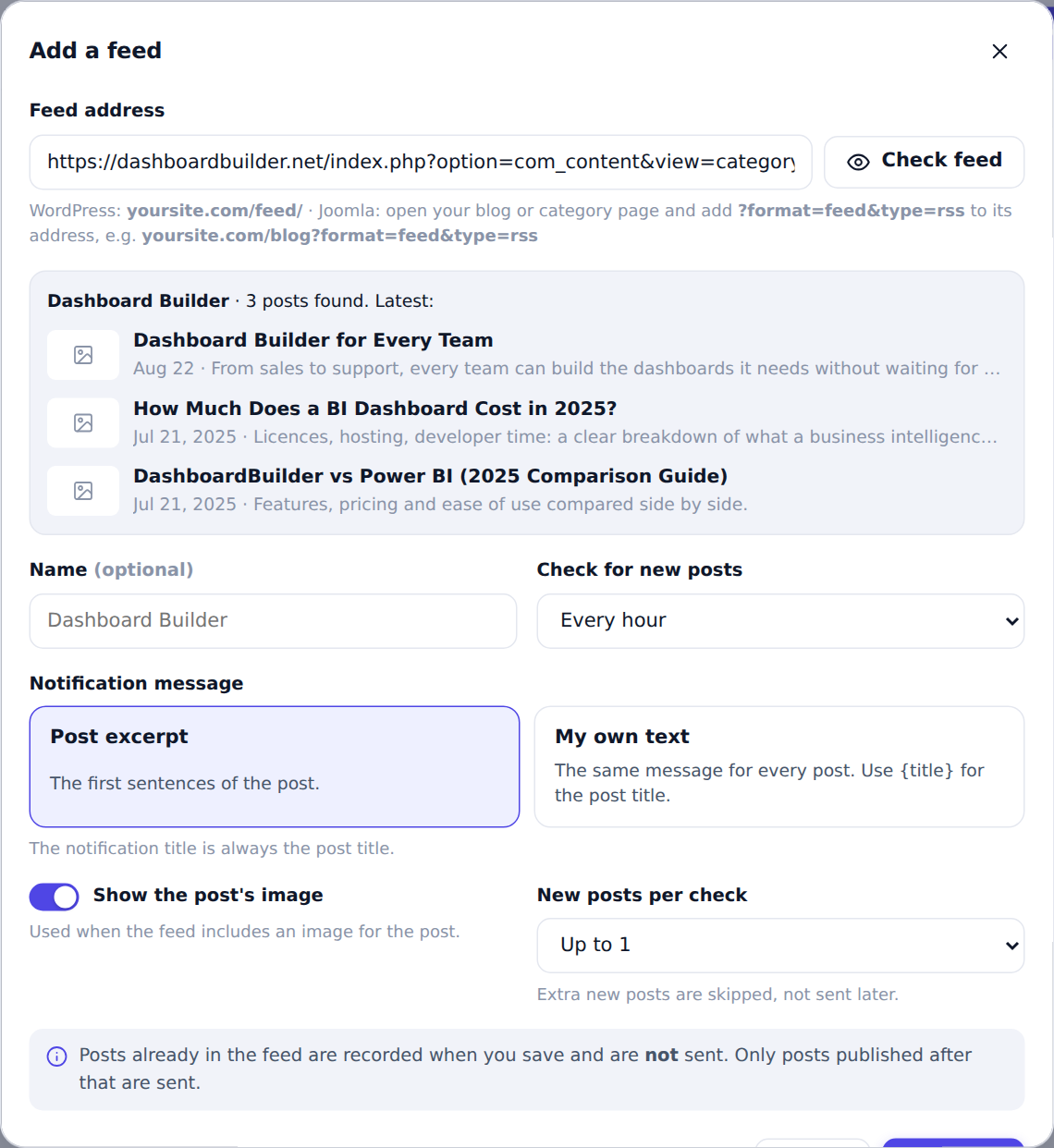
- You add your feed address in the Push Agent dashboard, under RSS auto-push. A Check feed button shows the latest posts it found, so you know the address is right.
- Your existing posts are recorded, not sent. The first check notes the posts already in the feed, so subscribers never get a flood of old articles.
- Push Agent checks the feed at the interval you choose, from every 15 minutes to once a day.
- Each new post becomes a notification. The title is the post title, the message is the opening lines of the post (or a fixed message you write), and the post’s image is shown where the browser supports it.
- Clicking the notification opens the post. Every send appears in your Campaigns list with an “RSS” label, with deliveries, clicks and click-through rate.
Find your feed address
WordPress
WordPress creates a feed for you. For most sites it’s simply:
https://yoursite.com/feed/
To push only one category, use that category’s feed instead, for example https://yoursite.com/category/news/feed/. If your posts’ images don’t appear in notifications, see the tip in the best practices below.
Joomla
Joomla builds a feed for any Category Blog, Category List or Featured Articles page. Open that page on your site and add ?format=feed&type=rss to the end of its address:
https://yoursite.com/blog?format=feed&type=rss
If your blog page is built differently (a single article or a page builder layout), point straight at the category instead. Find the category’s ID under Content → Categories, then use:
https://yoursite.com/index.php?option=com_content&view=category&id=12&format=feed&type=rss
Joomla even includes each article’s intro image in the feed, so your notifications get a picture without any extra setup.
Other platforms
| Platform | Usual feed address |
|---|---|
| WordPress | /feed/ |
| Joomla | Blog or category page + ?format=feed&type=rss |
| Blogger | /feeds/posts/default |
| Ghost | /rss/ |
| Shopify blog | /blogs/news.atom (use your blog’s name) |
| Medium | https://medium.com/feed/@yourname |
Not sure? Open your site, view the page source and search for application/rss+xml: the address next to it is your feed.
A real example: Dashboard Builder on Joomla
Dashboard Builder runs its website on Joomla, with its articles in one category. Its first try, /blog?format=feed&type=rss, returned a “page not found” error: there was no page at /blog, because the blog lives at a different address and is built as a custom layout rather than a Category Blog page.
Pointing straight at the category solved it:
https://dashboardbuilder.net/index.php?option=com_content&view=category&id=12&format=feed&type=rss
One more surprise: at first even that address showed the normal web page instead of the feed. The cause was caching: the site’s cache was serving the stored web page instead of the feed. After clearing the cache and keeping feed addresses out of it, the feed appeared and Push Agent recorded the existing articles. From then on, every new article goes out as a notification on its own.
Set it up in a few minutes
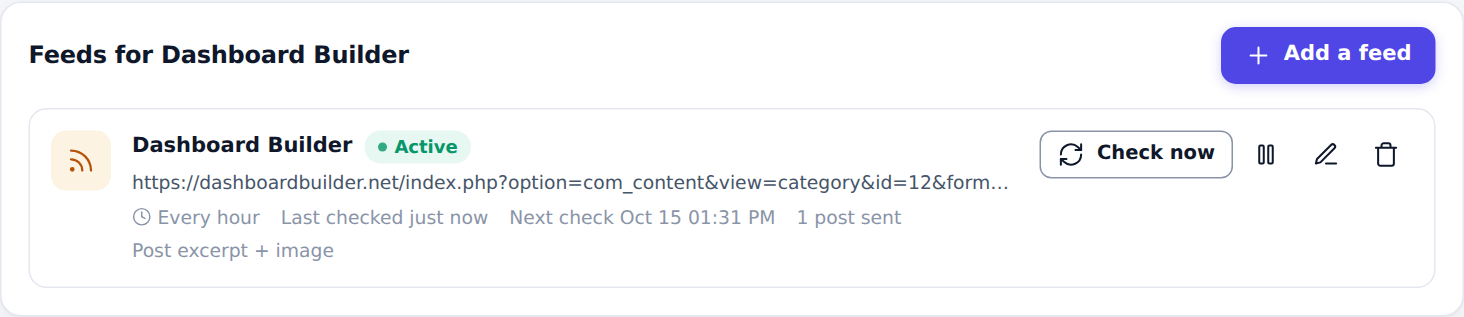
- Sign in to Push Agent and open RSS auto-push.
- Click Add a feed, paste your feed address and click Check feed.
- Choose how often to check, the message (post excerpt or your own text) and whether to show the post’s image.
- Click Add feed. Your existing posts are recorded and won’t be sent.
- Publish your next post. It goes out at the next check.
Every click and option is explained in the step-by-step guide: Set up RSS auto-push.
Best practices for automatic new-post notifications
Match the check interval to how often you publish
| You publish… | Check every |
|---|---|
| Several times a day (news) | 15 or 30 minutes |
| About once a day | 1 hour |
| A few times a week | 3 to 6 hours |
| Weekly or less | 12 hours or once a day |
Don’t flood subscribers
If you publish several posts at once, sending all of them is the fastest way to lose subscribers. Push Agent sends only the newest one per check by default; you can allow up to 3. Extra posts are skipped, not saved for later, so subscribers never get a burst of old news.
Write titles that work as notifications
Your post title becomes the notification title, and browsers show about 60 characters. Put the important words first: “Free shipping ends tonight” works better than “An update about our shipping policy”.
Excerpt or your own text?
The post excerpt works well for most blogs, as long as your posts open with a strong first sentence. If yours start with an image caption or a date, choose My own text instead and write one message for every post, for example “New on the blog: {title}. Tap to read.”
Get your images into the feed
A notification with a large image stands out. Joomla adds the intro image to the feed by default. WordPress doesn’t add the featured image to its feed: set Settings → Reading → For each post in a feed, include to Full text so images inside your posts are included, or use a plugin that adds the featured image to the RSS feed.
Keep feeds out of your cache
If you use a caching plugin or Cloudflare, make sure your feed address isn’t cached for long, or new posts can appear in your feed hours late. On Joomla, exclude addresses containing format=feed from page caching.
Test, then trust it
After adding the feed, publish a post and use Check now to see the notification arrive. From then on, you can let it run. If you want to compare titles, send an important post manually with an A/B test instead.
Common problems
- “This address is not an RSS or Atom feed”: the address opens a normal web page. Check the feed address, then clear your site’s cache.
- A 404 error: the page in the address doesn’t exist (on Joomla, use the category address shown above).
- No image in the notification: the feed has no image for the post, or the image isn’t on an https address.
- A new post wasn’t sent: it may have been skipped because several posts were published at once. The Recent posts list on the RSS page shows what happened to every post.
More fixes are in the troubleshooting section of the guide.
Frequently asked questions
Will my old posts be sent when I connect the feed?
No. The first check only records the posts already in your feed. Only posts you publish after that are sent as notifications.
Does RSS to push work with WordPress and Joomla?
Yes. On WordPress, use your feed at yoursite.com/feed/ or a category feed. On Joomla, use the feed of a Category Blog page, or the category feed address with its ID, as shown above. Any other site with a public RSS or Atom feed works too.
If I edit a published post, is it sent again?
No. Push Agent recognises each post by its link, so editing or updating a post never sends it twice.
How quickly does a new post go out?
At the next check, so within the interval you chose. The fastest interval is every 15 minutes; the slowest is once a day.
Can I connect more than one feed?
Yes, up to 5 feeds per website, for example one feed for each category you want to push.
Does it work with Atom feeds?
Yes. RSS 2.0, RSS 1.0 and Atom feeds all work.
Can I pause RSS auto-push?
Yes. Pause a feed at any time, for example while you republish old content, and resume it when you’re ready. Nothing is sent while it’s paused.
Which Push Agent plans include RSS auto-push?
RSS auto-push is included in the Growth plan and higher. You can see every plan on the Push Agent pricing page.
Start pushing your posts
Your readers already said yes to notifications. RSS auto-push makes sure they hear about every post you publish, without you lifting a finger. Create your free Push Agent account, add your website, then follow the RSS auto-push guide.